Friday
Sep162011

Announcing the Handmade Art Shader Collection for Cinema 4D

I am pleased to announce my first product for Cinema 4D: Handmade Art Shaders!

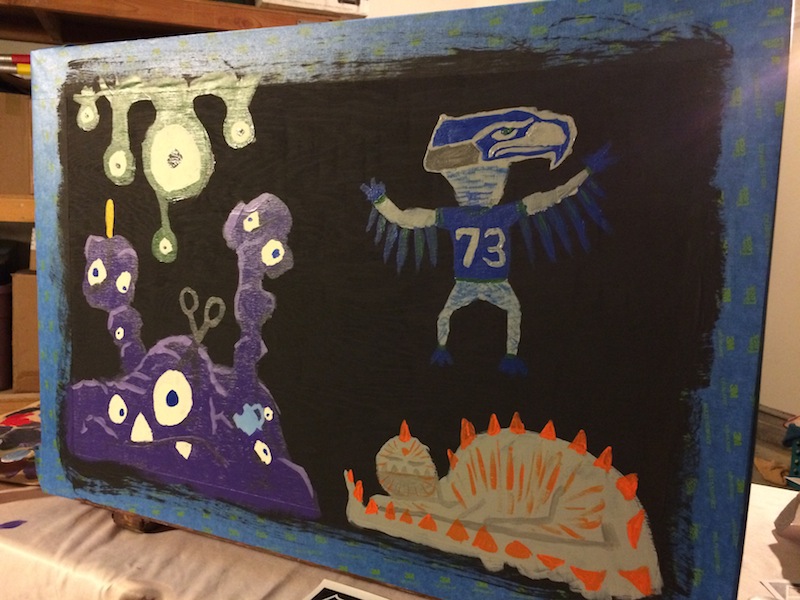
This is a collection of “handmade” Cinema 4D shaders were created by myself and another artist. We used various art mediums (charcoal, pencil, dry pastel, etc.) on art supply paper, then brought each handmade shader into Cinema 4D.  You can use Cinema 4D’s Sketch and Toon Art Shader feature to take our shaders and stylize your objects however you want.  Cinema 4D uses our handmade shaders to apply tones to your objects to mimic three dimensional shading.

Our Handmade Art Shader Master Collection includes the following materials: charcoal, pencil, marker, dry pastel, acrylic paint and oil paint. You can purchase the Master Collection that includes 68 unique shaders with 18 different variations of color for a total of more than 1200 shaders.

We also offer the each shader for sale separately, if you’d prefer to work with a single medium (charcoal, pencil, marker, etc.).

Check out our FREE “Art Shader Preview Pack”!  We’ve bundled one of each shader so you can demo our shaders before buying them. You can find the Preview Pack at the bottom of the product page.

What are you waiting for? Check them out!

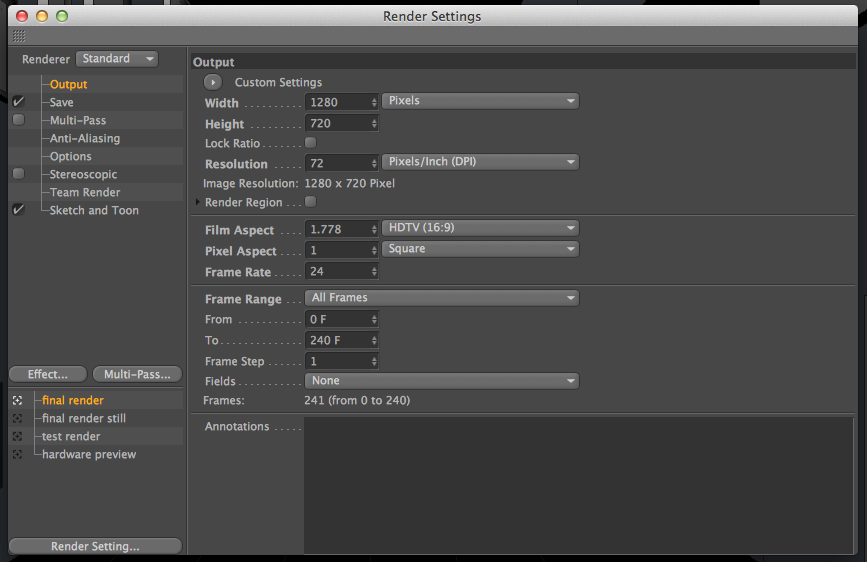
Note: These shaders require the Sketch and Toon module. If you are unsure if you have Sketch and Toon, you can try out the Preview Pack and see if they work.

Monday
Jun202011

New Project - Rock and Roll Hearts Logo Build


I recently completed a new project that I wanted to share with you. This is a short logo build for Rock and Roll Hearts , a company that does the best wedding videos ever. 'Wedding videos, pshaw!' you say, but oh would you be wrong. This are full blown rock and roll music videos tailored to the couple. They are well produced and sure to be a memory for anyone. But I digress. On to the video!


Look for a tutorial coming where I show how I sped up my animation workflow with a little Xpresso.
Tuesday
May102011

Extend Animation Tracks in Cinema 4D

I recently had a minor crisis working on a job when my client asked me to add a bit of tail to the show open I was working on. This happened near the end of the job where the open was already completely rendered out. They wanted the camera to continue drifting past its final position so they would have some leeway on cutting for the editors.

I panicked. Trying to animate the camera afterward while keeping the previous animation so it was a seamless transition was going to be an immense amount of work. It was going to be a lot of tweaking with rendering out tests to check out. It was going to take hours of work when I had other stuff that required my focus. I could have redone the previous animation but it was all rendered out and I was nearing delivery. No chance of re-rendering everything.

Luckily, a friend of mine pointed out options in the animation tracks that would help me out.

Here is my first animation:


You can see the curves, where they start and stop. Switch to keyframe view using the button at the top.


If you select one key, you bring up the attributes for that key in the Attribute Manager. However, this is not what we are looking for.


If you select the item you are animating, in my case the camera. It will select the entire animation track. Doing so will bring up the track attributes. This has a number of options, which you can explore, but we are focusing on the "After" setting.


In this specific case we want Continue.


This will take the animation curves from before the end of the final keyframe and extrapolate where the animation would, you guessed it, continue.

If we switch back to our curve view, we can see new lines added to our animation. These black lines represent the new animation that C4D figured out for you.


Let's take a look at it in motion.


Yeah, it's subtle. But your client only wanted a slow drift so they weren't holding on a still frame. It's enough.

Of course, Continue isn't the only option under this menu. This picture is from Maxon's extremely helpful Help files for Cinema 4D. This uses a demo animation to show how each of the different options will extrapolate extra animations.


That's all for now. I hope this little tip will help you out in the future and maybe cut some panic out of your workday. If you have questions, comments or examples to show off, please post them below!

I've uploaded the scene file if you want to mess around with it. You can download it here. It's nothing that you can't do with a few minutes worth of it but if you want to just mess around, feel free.

PS. Yes, the Help files for Cinema 4D are extremely helpful. Check em out sometime instead of posting on some forum and waiting around for someone to answer you. If they don't solve your problem, they will at least point you in the right direction.
Tuesday
Mar012011

In Defense of Co-op in Elder Scrolls: Skyrim

With the announcement of Elder Scrolls Skyrim, the internet is buzzing about the long awaited follow up to Oblivion. A teaser was shown, hinting at the story with an actual gameplay trailer revealed last week. The game, as you can imagine, looks incredible and many, yours truly included, cannot wait for a release.

But, because we know little about the game, the internet is abound with theories, rumors and wishes. After a recent discussion with a friend over the inclusion of co-op play, I have come here to defend my belief that co-op play, when done right, would be an incredible addition to the game.

Let me preface by saying that I do not think the game will have co-op play, unless modded in by a user after release. Bethesda has a long tradition of providing rock solid single player experiences and I do not think they will deviate from that tradition. So let's play pretend.

My ideas are all based on the premise that if co-op was included, it was done right and it worked right. My idea for co-op would work in the same vein as Borderlands: you can drop in anytime to anyone's game and play along side them. You will not gain progress in your game but be allowed to retain any experience or loot you attained while buddying up.

The single biggest complaint about a co-op experience in an Elder Scrolls game is that the experience is built around a rich, immersive world that you can interact with to your heart content. Adding in a second (or third) player would ruin the immersion the world crafts for you. However, I disagree. I think the addition of a companion would allow you to add another layer of complexity to the experience.

You could approach a certain quest differently, maybe having your companion distract a target while you steal something from their bedroom. You could dungeon crawl together, splitting up at a fork and reporting back to each other. Add in a proximity based chat that makes it so you can't talk to someone unless they are within shouting distance would add a degree of realism to it. Unless you cast your Mind Connection spell that opens up chatting for a few minutes. Or something like that.

A co-op system would also allow for the combat system to deepen immensely. Partner up with a mage and wait for them to cast a weakening spell while you hack away at their armor with your huge claymore. Take up your shield and sword and distract the target while your partner sneaks behind for a critical hit.

The game give you a gigantic world to explore and make your own. Why not make it your (plural) world?

Of course, we can take it one step further and create a single game experience for both of you. When starting a new game, the players are locked into that world. They can load up the game anytime and do quests, dungeon crawl and hunt or whatever. However, if a quest is finished, or a dungeon is cleared, the other player does not have access to that content unless they were there when it happened.

This would exclude the guild type quests because with those, you are building your own character and could take different paths from your companion. But if your partner razes a village from marauding dragons and you had decided to pay attention to your forlorn wife, you miss out on that quest and any rewards from it. But you are free to participate in the follow up quest, taking the bleeding dragon heart to the dying monk. Or whatever.

There would even be unique questing opportunities to explore. Imagine a quest that requires a second player to be at a different spot in the world, activating a magical rune at the same time that you activate it's sister rune across the world.

The questing system could scale up depending on the amount of players involved. You have three adventurers in your party? The quest scales to three runes to be activated. Need to collect a piece of a long lost key? Well, now you need to collect three pieces, in three different dungeons. You can split up to get each piece on your own or you can party up and tackle each dungeon together.

The Elder Scrolls games have proven that if given a rich world, players will immerse themselves in it. They are true role playing games. Given the chance to create a party to explore the role playing opportunities, I think players will jump at the chance to create deeper and richer experiences with their friends, far better than a single player experience could provide.

I think the inclusion of co-op in the world of Skyrim would be amazing chance to party up with your friends and enjoy the world that Bethesda has created.

Jordan Montreuil is a motion graphics designer living in LA. You can view his reel here.

Saturday
Nov062010

Using Weight Transform in Cinema 4D to Control Your Effectors

I was working on a short video for my reel and I was having troubles getting my Cloner Object to interact with the Plain Effector the way I wanted it to. I had the Plain Effector rotating the objects and shooting them into Z space. I would then pull down the strength to animate them back into place. The problem was, all of the objects shot back into place at the same time. I wanted to stagger the clones and I tried to use a Random Effector to change this but I couldn't get it to work.

Then I remembered reading about Weight Transform. I'm sure you've looked it at. Played with the slider and when it didn't do anything, you went onto something else.


Well, Weight Transform on it's own, doesn't do anything. It needs a brother (or sister) to play with, or something that can use the Weight. And that can be a little confusing so let me just show you. This is a grid of cubes, cloned.


Now, let's add two Plain Effectors, one with 45 degrees of Rotation and one with 50 units in Y Position applied.


With both effectors on, we can see the effects it has on the clones. But now, let's turn them off. That was just a reference for you to look back at as we get into Weight Transform. Next, we'll apply a Step Effector with all of the Transform options turned off and we'll crank up the Weight.


That's right. Nothing's happening. That we can see. But if we look under the hood and change the display options, we can see what the Step Effector is really doing. To do this, go to the Transform tab on the cloner and under the display mode, change the drop down menu to Weight. Now look at what's happening.


So what does this mean? It means that the Step Effector is using the Step mode to apply weight to each clone. It increases from one corner to the other, applying a value to each clone. Now, let's apply this value to the Plain Effector that is affecting the position of the clones. Enable the Plain Effector. The Clones jump right up. Now, in the Falloff Tab of the Plain Effector, there is a slider for Weight. As we slide it to 0, the clones drop to the ground as if we were using a Step Effector. But the Step Effector isn't using the position values at all, just the weight.

Cinema 4D Weight Transform for Postion from Jordan Montreuil on Vimeo.


In the video, we see the effect that the Step Effector's Weight has on the Plain Position Effector. Now let's do the same to the Rotation Plain Effector.

Rotation Weight Demonstration for Cinema 4D from Jordan Montreuil on Vimeo.


The Weight from the Step Effector is applied to each Plain Effector. Now, this type of animation would be entirely possible using just the Step Effector on the Clones but using Weight has so many more possibilities. Not only the Step Effector can apply Weight to objects, you can even use the Random Effector.


This is the same grid of cubes as before. But notice how instead of the gradiated color of dots on the clones, we have a smattering of colors? This is the randomness from the Random Effector. The same principles apply as the Step Effector. Turn on the Rotation Effector and play with the Weight Slider in the Falloff tab.

Random Weighted Rotation Demonstation Cinema 4D from Jordan Montreuil on Vimeo.


You'll notice that the Weight was applied even when the Weight slider was at 100% in the Falloff tab. In fact, the weight didn't go away until the slider read 200%. I believe this is because the slider computes the amount by subtracting the Weight amount from the Random effector from the amount in the Falloff tab. So with the Random effector providing 100%, you need 200% in the Falloff tab to override the Random Effector. If you had 50% weight in the Random Effector, then you would only need 150% in the Falloff tab of the Plain effector. Why? I don't know. Ask Maxon.

Now let's use Weight with the Position Effector.

Random Position Weight Effector Cinema 4D from Jordan Montreuil on Vimeo.


Adjusting the slider in the Falloff tab of the Position Plain effector changes how much the Position is affected by the Weight.

So, to sum it up. You can use Weight to affect your Effectors. Now, this isn't a whiz bang technique that you can just drop into your reel to wow your friends. This is a simple yet powerful workflow tip that change the way you animate and ultimately save time on your work. And when you save time, it gives you more chances to tweak your work while that deadline looms.

Now, I am just barely scratching the surface, I'm sure you can come up with something cooler than I demonstrated with. Post your results in the comments and show them off. Of course, if you have any questions or comments, please ask.